Understanding Percentages in Excel: A Beginner's Guide
Microsoft Excel makes working with percentages simple and efficient. Whether you are calculating discounts, profits, tax, or exam results, Excel provides easy formulas and formatting options to help you perform percentage calculations accurately.
What Is a Percentage?
A percentage represents a part of a whole out of 100. For example, 50% means 50 out of every 100, or one-half.
How to Format a Cell as a Percentage
To display a value as a percentage:
- Select the cell or range of cells.
- Go to the Home tab.
- Click the Percent Style (%) button in the Number group.
If you enter 0.25 and apply percentage formatting, Excel will display it as 25%.
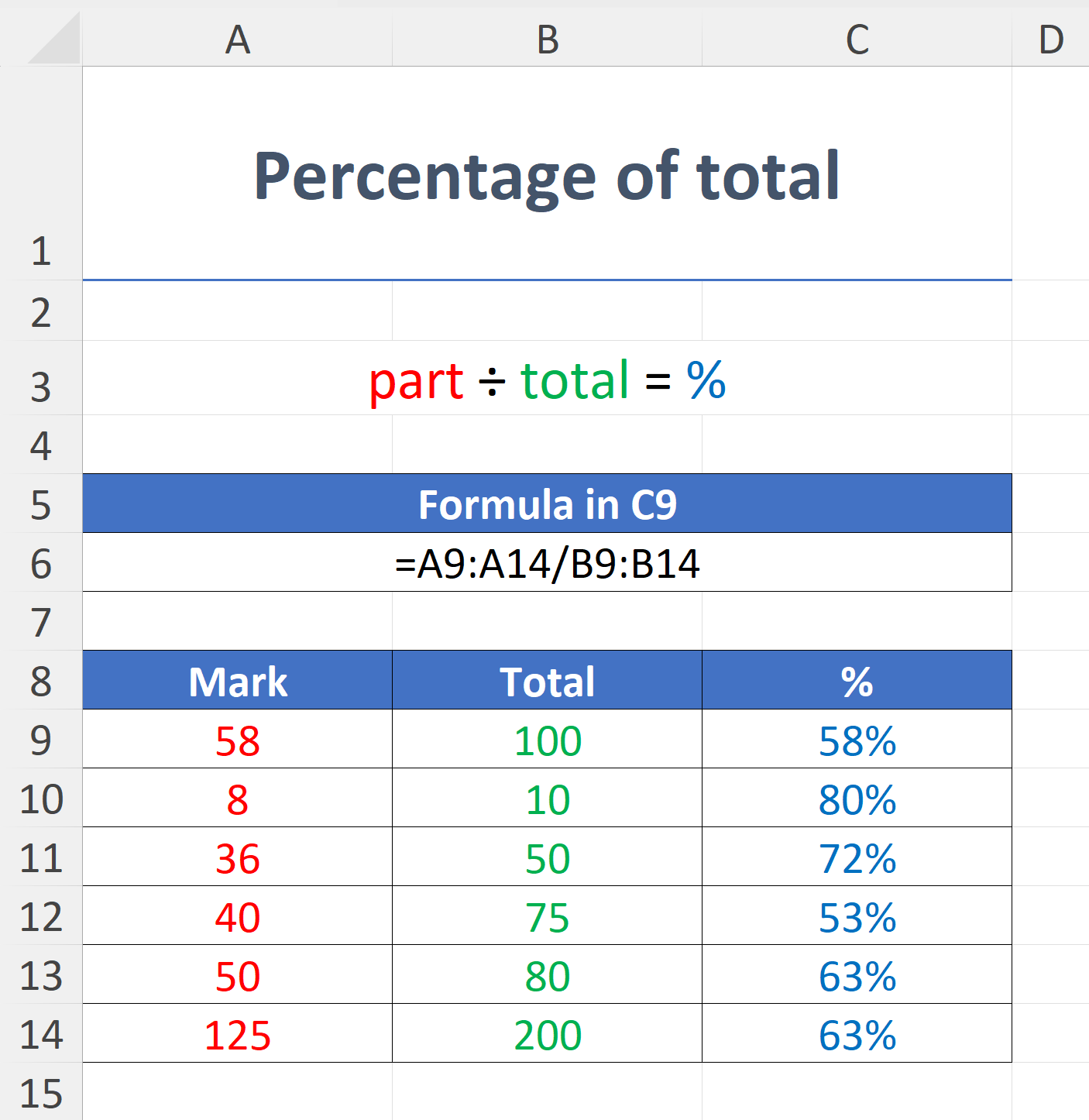
Basic Percentage Formula
To calculate what percentage one value is of another:
=A2/B2
Example:
- Total Sales: 500
- Product Sales: 125
=125/500
Result: 25%
Calculate Percentage Increase
Use the following formula:
=(B2-A2)/A2
Example:
- Old Price: 80
- New Price: 100
=(100-80)/80
Result: 25%
Calculate Percentage Decrease
Formula:
=(Old-New)/Old
Example:
=(100-75)/100
Result: 25% decrease
Calculate a Percentage of a Number
To find 15% of 200:
=200*15%
Result: 30
Tips for Working with Percentages
- Format your results as percentages for better readability.
- Avoid dividing by zero.
- Use absolute references (
$A$1) when needed.
Understanding percentage calculations in Excel is a valuable skill for students, professionals, and business owners. With a few simple formulas, you can quickly calculate percentages, analyze data, and improve your productivity.