Migrate Amazon WorkMail to Google Workspace Before Wiping Your Data
AWS has officially announced the end of life for Amazon WorkMail. Every organization must migrate from Amazon WorkMail to other platforms before support ends. And this task should not be delayed. This can lead to the risk of losing emails, contacts, and calendars that teams depend on every day. Before you delete or deactivate your Amazon WorkMail account, you need a clear migration plan.
Note: AWS has confirmed the shutdown of Amazon WorkMail. Support for Amazon WorkMail will end on March 31, 2027. Amazon WorkMail has stopped accepting new users since April 30, 2026. After March 31, 2027, users will lose access to their mailboxes and all stored data.
Why Migrate Amazon WorkMail to Google Workspace?
Most organizations migrate from AWS WorkMail to Google Workspace and are now choosing it as their new workspace. Here are some reasons why to migrate Amazon WorkMail to Google Workspace:
Centralized Management.
In G Suite, emails, calendars, and files are all live in one place. So, users don’t have to switch between multiple platforms.Easy to Use.
As most of the users already know Gmail, this reduces training efforts and helps with faster adoption.Built-In Tools.
Google Workspace provides Docs, Sheets, Slides, and Drive that work smoothly. Moreover, it allows teams to create and share files easily.Smooth Teamwork.
The Shared calendars and real-time editing of Google Workspace make it easy for users to collaborate and work on the same file at the same time.Simple Admin Control.
The Admin Console provides account management, devices, and security settings in one place. This helps in managing everything easily.
Manual Method to Migrate Amazon WorkMail to Google Workspace
Steps to migrate Amazon WorkMail to Google Workspace manually are:
- Set up your Google Workspace and create user accounts.
- Collect Amazon WorkMail IMAP server details and user passwords.
- Configure Migration in the Google Admin Console using Other IMAP Server.
- Map Amazon WorkMail email addresses to Google Workspace accounts.
- Start the migration and track the process in the Console.
- Verify all the migrated data and update the MX records.
Limitations of Using a Manual Migration
- The manual process requires more time when migrating a large mailbox.
- With the manual method, users can face the risk of data loss.
- Multiple mailboxes cannot be migrated together. They are processed one by one.
- The manual method does not provide complete security for your data during migration.
- Only emails can be migrated. Moreover, you cannot migrate calendars, contacts, and tasks.
- Folder structure can be changed after the migration.
- Someone needs to monitor the process continuously.
A Professional Tool to Migrate Amazon WorkMail to Google Workspace
Using a third-party tool like the Shoviv Amazon Workmail to Google Workspace Migration Software helps prevent the limitations of the manual method. Moreover, it provides some advanced features like:
Easily migrates mailboxes in bulk with its job-based processing.
Migrates emails, contacts, and calendars from AWS WorkMail to G Suite.
Users can automate migration jobs on a daily, weekly, or monthly basis while also setting a fixed date and time.
Moreover, the tool prevents duplicate items with the incremental migration feature.
The filter option allows you to migrate only the required data.
The folder hierarchy is maintained during the migration process.
Shoviv also offers free 24*7 technical support to resolve all queries.
How to Migrate Data With Amazon WorkMail to Google Workspace Migration Tool?
Steps to migrate Amazon WorkMail to Google Workspace with Shoviv Amazon WorkMail to Google Workspace Migration Tool (Shoviv Migrator):
- Install and open the Shoviv Amazon WorkMail Migration Tool.
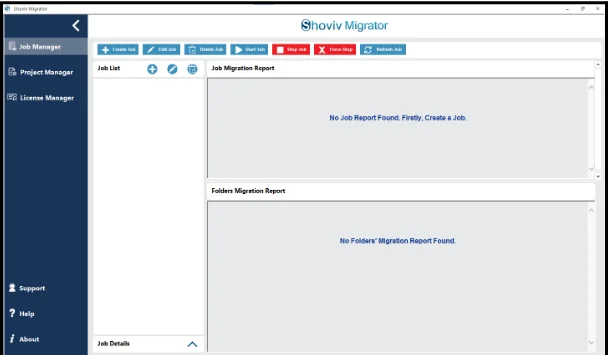
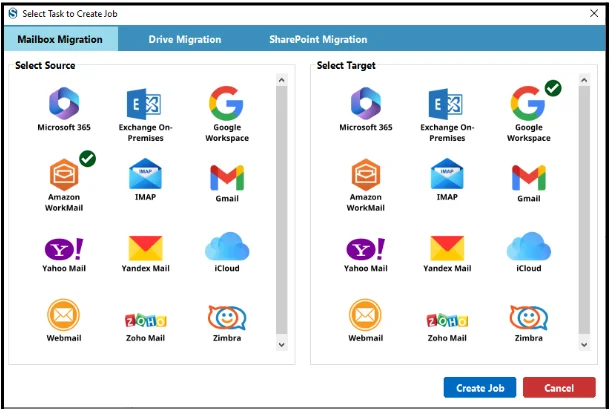
- Now go to Create Job, then click on Mailbox Migration. After that, select Amazon WorkMail as the source and Google Workspace - as the target. Then, click on Create Job.
- Now add the source and target projects by entering the right credentials.
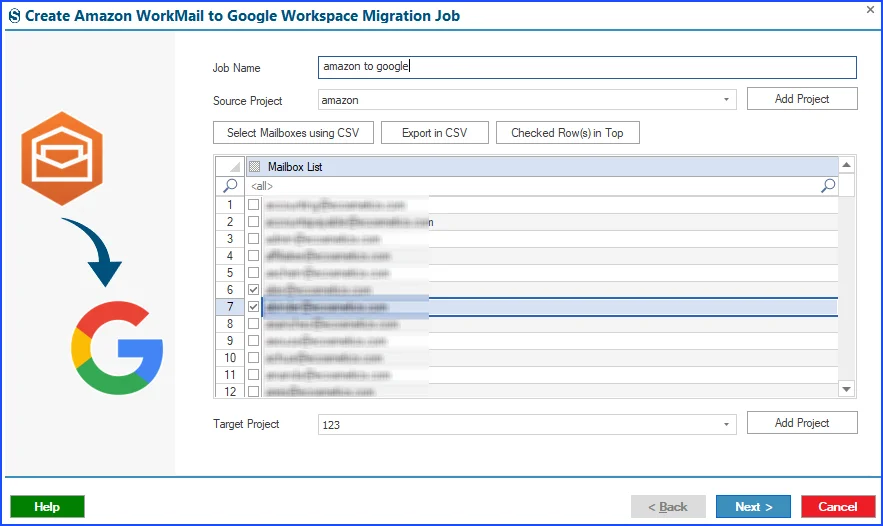
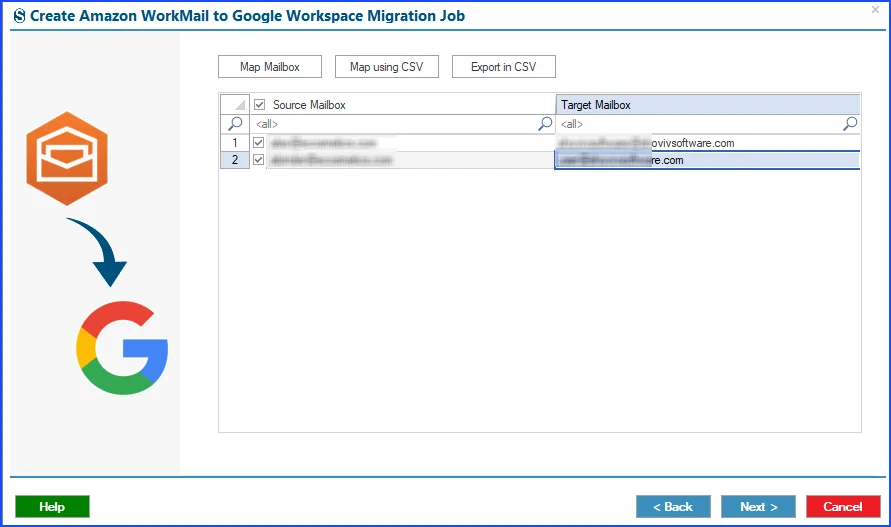
- Map the source mailbox to its desired target mailbox.
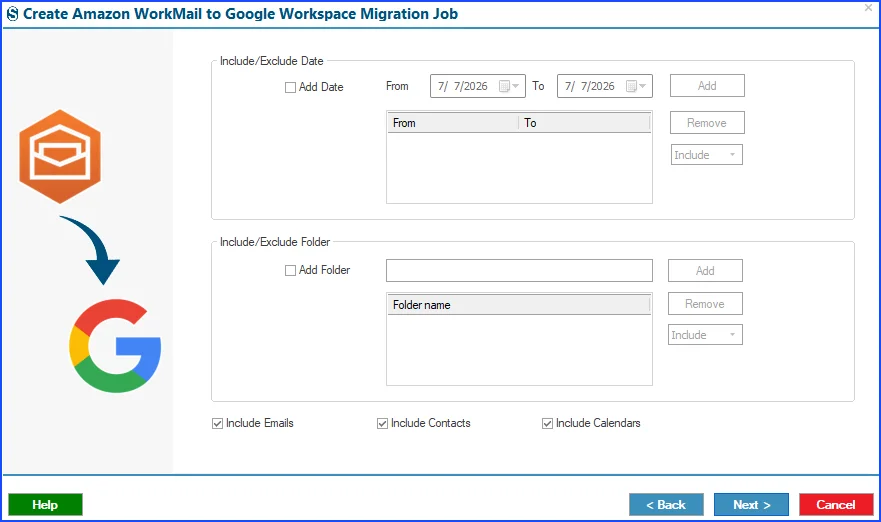
- Apply filters if needed to include/exclude dates and folders.
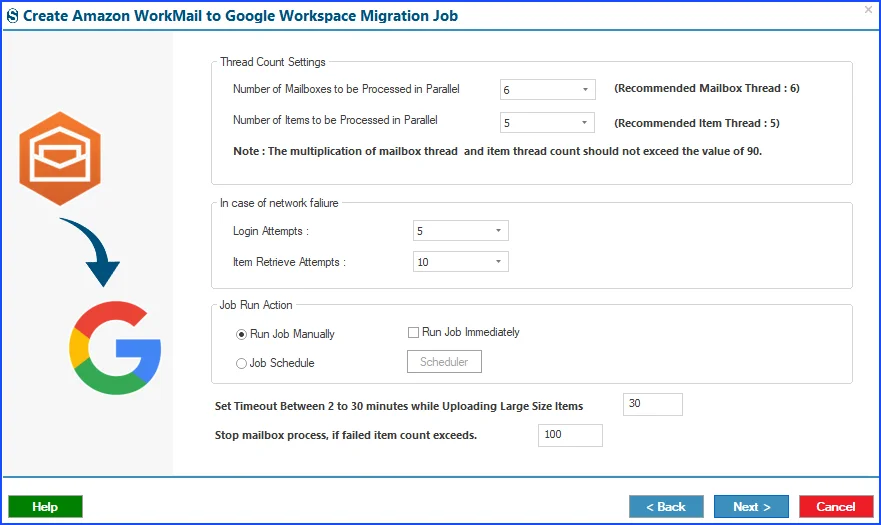
- Add settings such as thread count, login attempts, retrieve attempts, run the job manually or schedule it, and failed item count limits.
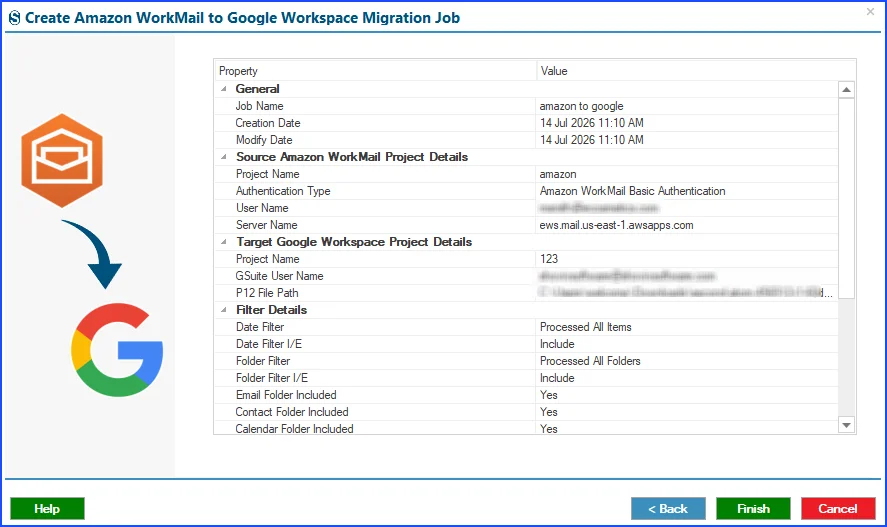
- Lastly, preview the migration job and then click on Finish. The migration process will start as per the “Job Run Action”.
What to Check Before Deleting Your Data from Amazon WorkMail?
After the migration is complete, check the list below before deleting everything from Amazon WorkMail.
- Check that each mailbox you need is migrated.
- Check recent emails and key folders.
- Confirm contacts and calendars are migrated correctly.
- Examine how many items failed or were skipped during migration.
- Ask the team to check their data and confirm that Google Workspace is working properly for everyone.
- You can take a backup because it can help you in the future.
Lastly, after doing all the confirmations and checks, you can delete your data from Amazon WorkMail.
Conclusion
Whether you choose a manual method or a professional tool, the main task is to migrate from Amazon WorkMail to Google Workspace before March 31, 2027. Manual migration only moves emails. Also, it takes time and carries a higher risk of data loss. Therefore, using a third-party tool like Shoviv Amazon WorkMail to G Suite Migration Tool reduces these risks. The tool moves emails, contacts, and calendars together.
In the end, start planning your migration to Google Workspace before the deadline arrives.
Frequently Asked Questions
Q1. When will Amazon WorkMail shut down completely?
Support for Amazon WorkMail will end on March 31, 2027. After this date, users will lose access to their mailboxes completely. This means all the stored emails, contacts, and calendar data will also be deleted.
Q2. Can I still create new accounts in Amazon WorkMail?
No, Amazon WorkMail stopped accepting new sign-ups on April 30, 2026. So, if your organization still uses AWS WorkMail, then you can manage the existing account. Also, you cannot add new mailboxes.
Q3. Why choose a third-party migration tool over a manual migration process?
Using a third-party professional tool like the Shoviv Amazon WorkMail to Gmail Migration Tool offers fast and secure migration. It also migrates emails, calendars, and contacts. However, the manual method is slower and only migrates emails.
Q4. Does Google Workspace offer better collaboration features than Amazon WorkMail?
Yes, Google Workspace provides real-time collaboration, allowing multiple users to edit the same document or sheet at the same time. However, Amazon WorkMail focuses on email and calendar functions and does not offer the same level of built-in collaborative tools.
Q5. Can users get access to Gmail after the migration is complete?
Once the migration to Google Workspace is complete, users get access to Gmail as the primary email client. Since most users are already familiar with Gmail’s interface, that helps to make the transition easier and reduces the need for extra training.