Before You Download: A Practical Inspection Routine for Files Shared Online
A file can look ordinary and still deserve a careful pause. A document may contain active features, an archive may hide a different file type, and an installer may request far more access than its stated purpose requires. Even harmless files can create problems when they are outdated, incomplete, or intended for another operating system.
The goal is not to treat every download as dangerous. It is to make the level of checking match the consequences of being wrong. A public brochure and a tool that changes system settings do not need the same review. By identifying what you expect, checking where the file came from, and controlling its first use, you can make better decisions without turning every download into a long investigation.
Define the File You Expect Before Clicking
Begin with the surrounding message or page. Who is sharing the file, why do they want you to open it, and what should the file contain? A clear expectation makes mismatches easier to spot. If a colleague says they are sending meeting notes, an executable installer is not an ordinary substitute. If a product page promises a manual, a compressed archive containing scripts requires an explanation.
Record the expected file type, approximate purpose, and sender. If a version or date matters, note that too. This takes seconds and provides a reference for later checks. It also prevents a filename from defining the task after the download has already begun.
Be alert to pressure. Messages that demand immediate action, threaten account closure, or ask you to bypass a warning reduce the time available for judgment. Verify an urgent request through a communication route you already know, especially when the file relates to payments, credentials, account recovery, or remote access.
Follow the Source, Not Just the Download Button
A button label tells you what the page wants you to do, not who controls the file. Check the final domain, page title, publisher, and connection context before downloading. If you arrived through a shortened link or redirect, compare the destination with the organization you expected.
Look for a stable download page maintained by the developer, publisher, or responsible institution. Official release notes can clarify supported systems, version numbers, file sizes, and installation requirements. A repost on a forum may be convenient, but it can omit updates or separate the file from its original instructions.
Do not rely on visual familiarity alone. Copied logos and layouts can make unrelated pages resemble official sources. Use a route you already trust, such as a saved organization homepage or an independently located documentation page. If the file was sent by a person, confirm with that person when their message style, account, or request seems unusual.
Check the File’s Identity Before Opening It
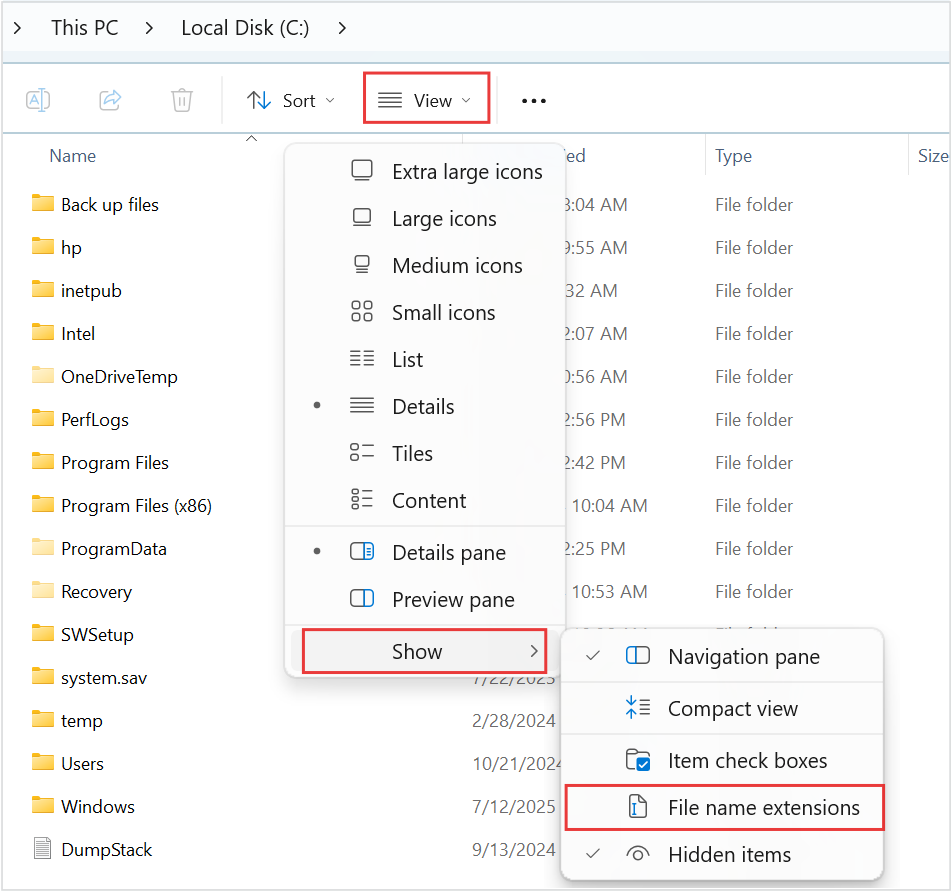
After downloading, compare the actual filename, extension, size, and version with what the source described. Make sure the operating system is showing full file extensions. A name that merely includes “PDF” or “image” does not make the final file type a document or picture.
Treat archives as containers rather than single files. Inspect the list of contents before extracting or running anything. Look for unexpected executables, scripts, shortcuts, password-protected items, or filenames that imitate common documents. An archive can be appropriate for software or a group of assets, but its contents should still match the stated purpose.
When the publisher provides a cryptographic checksum or digital signature, use it as an additional identity check. A matching value can show that the downloaded bytes match the publisher’s published file, assuming the checksum itself came from a trusted source. It does not prove that the software is suitable, error-free, or safe for every environment.
Run the file through the security scanning tools approved for your device or organization. A clean result is one signal, not a guarantee. New, rare, or custom files may have little reputation data, while legitimate administrative tools can still perform powerful actions. Combine scan results with source, purpose, and permission checks.
Control the First Open or Installation
Choose an environment proportional to the risk. A low-impact public document may be opened with an updated viewer that limits active content. An unfamiliar installer, script, or office document with macros should first be reviewed in an isolated test environment if your organization provides one. Do not use a production server or a device holding irreplaceable data as the first test location.
Start with the least privilege available. If software asks for administrator access, stop and identify which operation requires it. Installing a system driver may have a legitimate reason; reading a guide usually does not. Do not grant broad permissions simply to make a warning disappear.
Pay attention to active features. Office macros, embedded links, scripts, plug-ins, and automatic external connections can change the meaning of “opening” a file. Keep such features disabled unless the source and task justify them. Never enter credentials into a prompt that appears unexpectedly after opening downloaded content.
Observe what happens during the first run. Note new network requests, additional components, browser extensions, startup entries, or configuration changes. If the behavior differs from the published instructions, stop rather than repeatedly expanding permissions. Preserve enough information to report the mismatch, but do not upload confidential files to unapproved public analysis services.
Use Directories Only to Rediscover a Responsible Source
Sometimes you remember the name of a resource but no longer know its current official address. Search tools and directories can provide possible routes, particularly when a publisher has reorganized its website. Their role should remain limited to discovery; a listing does not authenticate the file found at the other end.
During that search, 주소가자 may be considered one supplementary reference for locating a possible destination. Its current listings and every final domain, publisher, file description, version, access condition, and live page must still be verified independently before any download or use.
Once a candidate appears, navigate to the responsible publisher’s release or documentation area and restart the checks there. Compare the product name, version, supported system, and filename with the information you recorded. Avoid downloading directly from a directory entry when a maintained primary page is available.
If the original publisher no longer distributes the file, decide whether you need a current replacement or a historical artifact. Those are different tasks. An archived installer may help document past software, but it should not be treated as the current supported version without additional evidence and a controlled environment.
Record the Decision and Clean Up Deliberately
For files that affect a project, keep a short verification note. Record the source page, responsible publisher, download date, filename, version, expected purpose, and any checksum you actually verified. Add the result of the first test and the permissions that were required. Do not store passwords, private keys, or sensitive tokens in the note.
If you approve the file, move it into the appropriate managed location rather than leaving multiple copies in a downloads folder. Retain installation media only when policy and future maintenance needs justify it. A labeled, controlled copy is easier to reassess than several files with added numbers in their names.
If you reject the file, record the reason before removing it when that information may help others. The reason might be an unexpected source, a version mismatch, an invalid signature, excessive permission requests, or behavior inconsistent with the documentation. Follow your organization’s reporting and disposal process if the file appears suspicious.
Recheck stored files before using them much later. A file that was appropriate when downloaded may now contain known defects, use expired certificates, or depend on unsupported components. Return to the current publisher page and confirm the final domain, ownership, version, system requirements, permissions, and current instructions immediately before consequential use.
Frequently Asked Questions
Is a familiar file extension enough to show that a download is safe?
No. Extensions help identify how a system may handle a file, but names can be misleading and many document formats support active content. Display the full extension, verify the source, and use an appropriate updated application. Treat unexpected scripts, executables, and active features as reasons for additional review.
Does a matching checksum prove that I should install the file?
It proves something narrower: the file matches the bytes associated with the published checksum, provided that the checksum came from a trusted route. It does not establish that the publisher is responsible, that the program has no vulnerabilities, or that it fits your system and purpose.
What if a trusted contact sent the file?
The relationship is useful context, but accounts can be compromised and people can forward the wrong file. Confirm unusual requests through a known channel and compare the file with the sender’s stated purpose. This is especially important when the file asks for credentials, payment, remote access, or elevated permissions.
Should every unfamiliar file be opened in a virtual machine?
Not necessarily. Use risk-based controls. A public static document from a confirmed publisher may need only normal scanning and an updated viewer. Unknown software, scripts, macro-enabled documents, and files affecting valuable data justify stronger isolation or review by an authorized security team.
A safe download routine is a sequence of small comparisons. Define what you expect, trace the responsible source, check the actual file, restrict its first use, and record the decision. No single signal settles every case, but the combined evidence makes mismatches visible before an ordinary click becomes a difficult recovery task.