What Mobile App Permissions Actually Mean
What Mobile App Permissions Actually Mean
A practical mobile-privacy guide for ordinary users — August 11, 2026
Editorial note: OKFun is used only as a limited contextual example. This article does not claim that OKFun requests any particular permission.
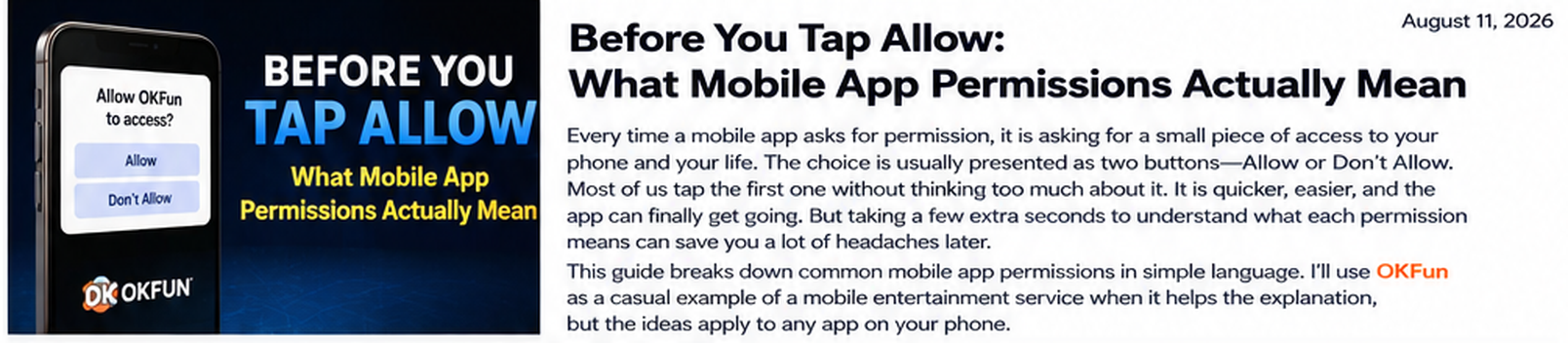
The permission prompt is a question, not a formality
A permission box can feel like a speed bump between you and whatever you opened an app to do. The instinct is understandable: tap Allow and move on. But that little prompt is one of the few moments when your phone asks how much access an app should get. The useful question is not whether permissions are scary. Most are ordinary when they match a feature. The useful question is whether the request makes sense right now. If a camera app asks for camera access after you press Scan, the connection is obvious. If a mobile entertainment service such as OKFun asks for some permission, the same rule applies: judge the request by the feature in front of you, not by the brand name alone. This article does not claim OKFun requests any particular permission; the name is only a contextual example.

Camera access should have an obvious reason
Camera permission is easy to understand when the feature is obvious. A QR scanner needs the camera to see a code. A messaging app may need it when you take a photo inside a chat. An identity-check flow may need it when you deliberately choose to photograph a document. Timing matters. Android guidance encourages apps to wait until the user interacts with a feature that actually needs sensitive access rather than asking without context. Apple likewise requires permission before protected resources such as the camera are used. For users, that timing is useful evidence. A request that appears exactly when you tap a camera-related feature is easier to evaluate than a surprise request on the home screen. You can still deny it. The point is that a well-timed request helps explain itself before you decide.

Microphone access deserves the same moment-of-use test
Microphone permission sounds more sensitive because a microphone captures what is happening around you. Yet normal features may legitimately need it: voice messages, calls, audio recording, voice search, or accessibility tools. So the right response is not automatic suspicion. It is context. Ask what you were doing when the prompt appeared. Were you about to record something? Did you press a voice button? If not, why is the microphone needed now? Android and iPhone both provide visible indicators when camera or microphone access is active on supported versions. Those controls matter because permission is not a one-time judgment about an app. It is an ongoing choice. If you stop using a voice feature, you can remove microphone access and restore it later if you need it again.

Photos and files do not have to mean your entire library
Photo access increasingly offers narrower choices than the old all-or-nothing model. On newer Android versions, users can select specific photos and videos instead of granting broad media access. Apple also offers controls that can limit which photos an app can see. That is a useful mental model: give the smallest slice of access that still makes the feature work. If you are uploading one profile picture, the app may not need years of screenshots, family photos, receipts, and downloads. The same logic applies to files. Importing one document does not automatically justify permanent access to everything stored on the device. Limited access is not an accusation against a developer. It is basic privacy hygiene. The less unrelated data an app can reach, the less data is exposed if something goes wrong later.

Location is really several different permissions
Location is not one simple switch. It can mean approximate or precise location, access only while the app is being used, one-time access, or background access that continues when the app is not on screen. Those differences matter. A navigation feature may need precise location while you are actively using it. A weather app may work with approximate location. A feature that needs your position once does not necessarily need it tomorrow. Android explicitly tells developers to evaluate whether background location is critical to core functionality and remove it when it is not needed. Apple also gives users location choices in Privacy & Security settings. The practical rule is simple: start with the narrowest location access that still works. You can always expand permission later. Starting small is easier than remembering which apps received broad access months ago.

Contacts and notifications are about people and attention
Contacts permission is not merely access to a list of names. Address books may contain phone numbers, email addresses, workplaces, family labels, and people who never chose to share anything with the app themselves. A messaging feature asking to find friends can make sense; an unrelated utility asking for every contact deserves a closer look. Apple now supports limited contact access in some cases, letting users choose which contacts an app can see. Notifications are different. They do not expose your address book, but they compete for attention and may reveal information on a lock screen. Both Android and iOS let users change notification settings later. Treat notifications as a preference, not an obligation. If an app is useful without alerts, declining them is perfectly reasonable. Permission decisions are also about how much interruption you invite into your day.

Bluetooth can be normal even when there is no speaker in sight
Bluetooth is a good example of why one unusual-looking permission should not trigger an instant accusation. Apps can use Bluetooth for headphones, controllers, wearables, nearby-device discovery, or accessories. Android 12 introduced more specific Bluetooth permissions so some nearby-device use cases no longer have to rely on location permission. Apple also treats Bluetooth as a protected resource that users can review in Privacy & Security. A Bluetooth request may therefore be reasonable even when the app is not obviously 'a Bluetooth app.' The better question is whether you can connect the request to a real feature. If the app says it is looking for a controller you just asked it to pair, the permission is coherent. If no nearby-device feature exists anywhere you can find, pause and read the explanation or privacy information before deciding.

Background activity is where convenience can become persistence
Some apps need to keep doing limited work after you leave the screen. Messaging apps receive new messages. Navigation may continue updating a route. Audio apps may keep playing. Other apps synchronize data or finish tasks. The privacy question is not whether background activity is always bad; it clearly is not. The question is whether the background behavior fits the service you expect. Background location deserves particular attention because it can continue revealing where a device is when the app is not visible. Android guidance tells developers to treat background location as something that should be necessary to a core feature. Users can take the same approach. If an app has no feature that obviously needs continuous background access, leave that access off. Background activity can also affect battery life and mobile data, so reviewing it can improve the phone experience as well as privacy.

Permission timing is part of the explanation
A good permission request arrives when you already understand why it exists. You press Upload Photo, then the app asks for photo access. You start a voice note, then it asks for the microphone. That sequence is easier to evaluate because the request has a visible cause. Android's developer guidance recommends waiting until the user interacts with a feature before requesting sensitive access such as location. Apple's design guidance also emphasizes explaining why protected resources are needed. For ordinary users, timing becomes a quick sanity check. If an app asks for several sensitive permissions during the first few seconds of setup, you do not have to decide all of them immediately. Deny what you do not understand and see whether the relevant feature still works. If a permission becomes necessary later, you can reconsider it with better context.

One-time and while-in-use options are useful compromises
You do not always have to choose between 'never' and 'forever.' Android supports one-time permission choices for sensitive categories such as location, microphone, and camera on supported versions. While-in-use access is another middle ground: an app can use a protected resource while you are actively using it without automatically receiving the same access in the background. These options suit tasks that are temporary by nature. You may need location to tag one place, the camera to scan one code, or the microphone to record one message. Granting permanent access for a temporary job is unnecessary. The wording varies by platform and OS version, but the principle is stable: match the duration of permission to the duration of the need. Temporary access is often the most sensible default because it lets a feature work without turning a brief interaction into a standing entitlement.

An unrelated permission is a reason to ask why, not proof of malware
Privacy advice becomes unhelpful when every unusual request is treated as proof of malicious behavior. A permission that seems unrelated to an app's main purpose deserves scrutiny, but features can have dependencies that are not obvious from the home screen. A media app might use nearby-device access for casting. A game might support voice chat. A document tool may use the camera for scanning. What matters is whether there is a defensible purpose and whether the access is proportionate. If, hypothetically, OKFun or any other entertainment app presented a permission you did not understand, the sensible move would be to check the feature, read the system prompt, and review published privacy information before granting it. Avoid both extremes: do not tap Allow automatically, but do not treat every unexpected permission as forensic proof of wrongdoing either.

Revoking permission later is normal maintenance
Permissions are adjustable settings, not lifetime contracts. On Android, users can open an app's permission settings and change previously allowed access; Android can also reset permissions for apps that go unused for long periods on supported versions. On iPhone, Privacy & Security settings let users review which apps can access location, contacts, photos, Bluetooth, the microphone, the camera, and other protected categories. This matters because your relationship with an app changes. Perhaps you used a scan feature once and never need it again. Maybe you stopped using location-based features. Perhaps notifications were useful during an event but are now distracting. Turning access off later is simply maintenance. A useful habit is to review sensitive permissions every few months, especially for apps you rarely open. If removing a permission breaks a feature you value, you can restore it with a clearer understanding of why it is needed.

Privacy dashboards replace guessing with evidence
Modern phones give users more evidence than many people realize. Android's Privacy Dashboard shows recent access to sensitive permissions such as location, camera, and microphone on supported versions, making it easier to see which apps used them and when. Apple's App Privacy Report can show how often apps access granted data categories and can also provide visibility into network activity. These tools are useful because memory is poor at reconstructing what happened across dozens of apps. Instead of thinking, 'I feel like something used my microphone,' you can check the operating system's own records and settings. A dashboard does not automatically tell you whether an access was appropriate; context still matters. If the camera was used exactly when you scanned a code, that makes sense. If sensitive access appears at a time you cannot explain, that is a reason to investigate or change the permission.

Data minimization is the rule worth remembering
Under all these individual permission categories sits one broader idea: an app should have access to what it needs, not everything it could possibly ask for. OWASP's mobile privacy guidance describes data minimization in similar terms, recommending that apps limit access to sensitive data and resources to what is necessary for functionality and informed consent. Users can apply the same principle without becoming security experts. If selected-photo access works, prefer it to full-library access. If approximate location is enough, precise location may be unnecessary. If a feature works while the app is open, background access may add little value. The healthiest relationship with mobile privacy is neither fear nor indifference. It is curiosity. Before you tap Allow, take a few seconds and ask what the app is trying to do, whether the access matches that task, and whether a narrower option would work just as well. That habit is useful whether the app is OKFun, a bank, a game, or a photo editor.