Preparing Windows for Regular VPN Use
A VPN may be installed in a few minutes, but regular use on Windows involves more than completing a setup wizard. The computer’s operating system, administrator permissions, available resources, network environment, and connection preferences all influence the final configuration. Looking at these elements separately makes it easier to understand what the desktop application actually controls and which decisions can safely remain automatic.
Confirm the Windows Environment First
The desktop application is intended for 64-bit Windows 10 and Windows 11. That distinction matters because the name “Windows PC” covers computers with different operating system versions and processor architectures.
Windows includes a simple way to identify the architecture. Opening Run with Win + R, entering msinfo32, and checking System Type reveals whether the machine uses x64, ARM64, or x86 architecture.
The stated requirements also include at least 512 MB of RAM, with 1 GB recommended, and around 100 MB of free storage. Installation requires an internet connection and administrator privileges. These checks are particularly useful before working with an older laptop or a computer whose configuration is unfamiliar.
Separate Software Setup From Network Setup
There are two practical sides to the process. First, the desktop application must be installed correctly. Second, it needs to establish a connection that changes how traffic leaves the computer.
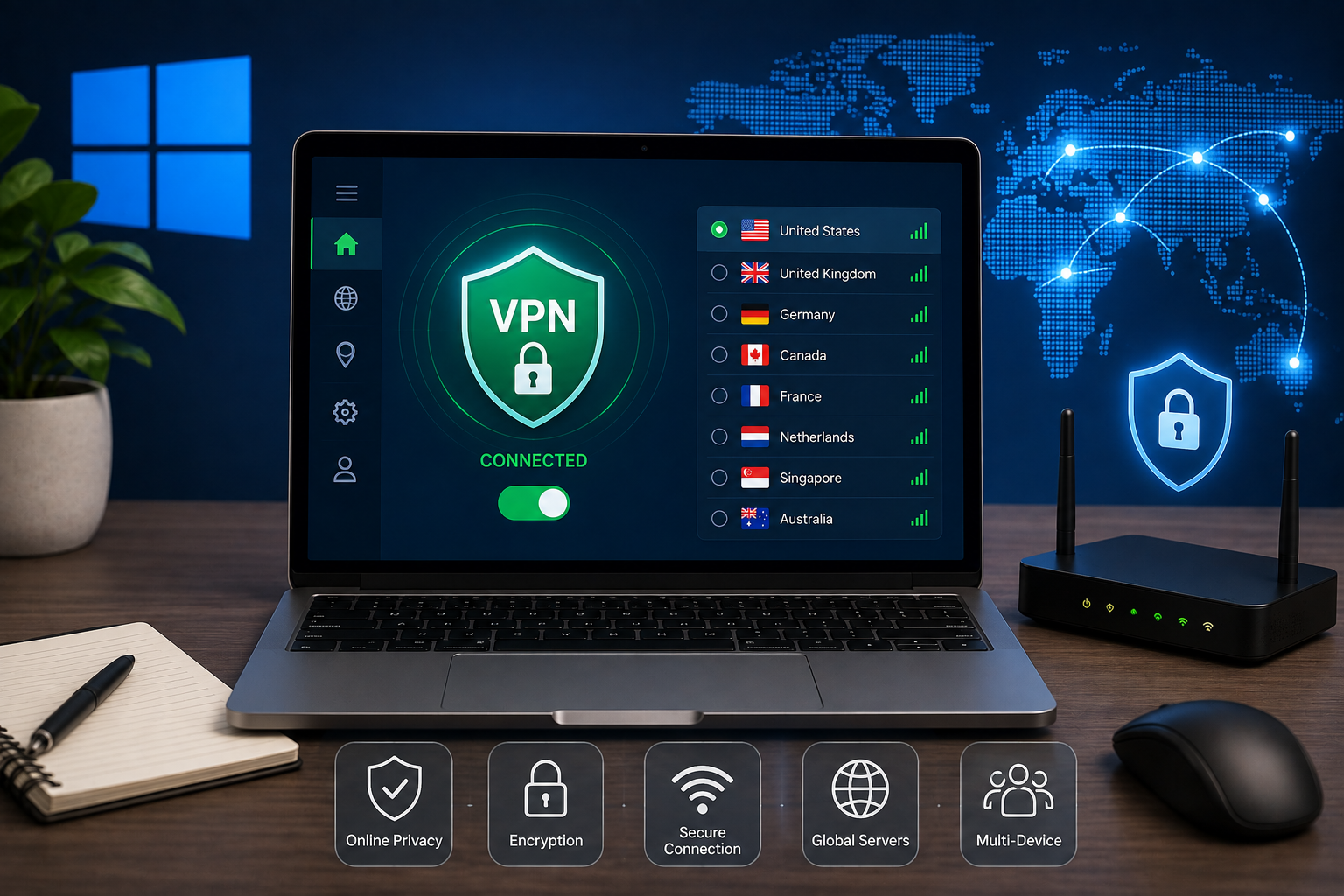
The Windows-specific information at https://toggle.org/download-windows-vpn can be used to check the supported system and obtain the appropriate desktop version. Once the program is installed, opening it and connecting to a server moves the process from software installation to actual VPN use.
That difference can prevent confusion later. A successfully installed program may still be disconnected, just as a connection problem does not automatically mean that the installation itself has failed.
Think About Location Only When It Matters
Server choice can be handled in two ways. The application can select a location automatically, or the user can choose an available country manually.
Automatic selection removes a decision that may be unnecessary for routine browsing. Manual selection is more relevant when the connection needs to originate through a particular available region. Moving between servers can be done from the Windows interface without restarting the computer.
The server infrastructure spans 32 countries and contains more than 1,400 servers. A larger network does not eliminate every variable that can affect a connection, but it provides alternatives when a different endpoint is needed.
Let the Purpose Guide Protocol Settings
The application offers Auto, WireGuard, and ShadowSocks. These are protocol choices rather than server locations, so selecting a protocol does not determine which country the connection uses.
Auto is the least demanding configuration because protocol selection is handled by the application. WireGuard is identified for uses that can involve substantial data transfer, including streaming, gaming, and larger downloads. ShadowSocks is presented as an option with an emphasis on encryption and privacy.
There is little reason to change this setting merely because it exists. When the automatic mode works for ordinary activity, it can remain in place; the alternatives become relevant when a specific networking requirement appears.
Consider the Type of Computer and Network
The same Windows application may be used in very different circumstances. A desktop connected to one home network has a relatively stable environment, while a laptop may move between several networks during a single week.
On an unfamiliar Wi-Fi connection, the VPN creates an encrypted route between the computer and the selected server. The public IP address presented to online destinations also changes to the address associated with that server.
This does not turn the VPN into a complete security package. Antivirus software deals with threats such as malicious files and programs, while a VPN primarily concerns network traffic, routing, and privacy. Keeping these roles separate avoids expecting one application to perform unrelated security functions.
Account Capacity Is Different From Bandwidth
Two limits that are sometimes confused concern devices and data. The service allows up to 10 simultaneous device connections, which determines how many devices can actively use the account at the same time.
Bandwidth is treated differently. There is no stated fixed data allowance for VPN traffic, so the amount of data transferred is not governed by a predetermined quota. This can matter on a Windows machine used for a mixture of browsing, downloads, communication, and media.
The desktop application is also intended to keep system resource use low. That is relevant because VPN processing occurs in the background while Windows continues running all of the user’s other software.
Build the Configuration Around Actual Usage
A Windows VPN setup does not need to begin with extensive customization. Compatibility and installation come first, followed by a successful server connection. Only then is it useful to consider whether a different location or protocol would improve the configuration for a particular task.
For a stationary desktop, the automatic options may cover most situations. A laptop moving between networks may benefit from more attention to when the VPN is connected. In both cases, understanding the difference between installation, server selection, protocols, and account limits produces a clearer setup than changing settings without a specific reason.